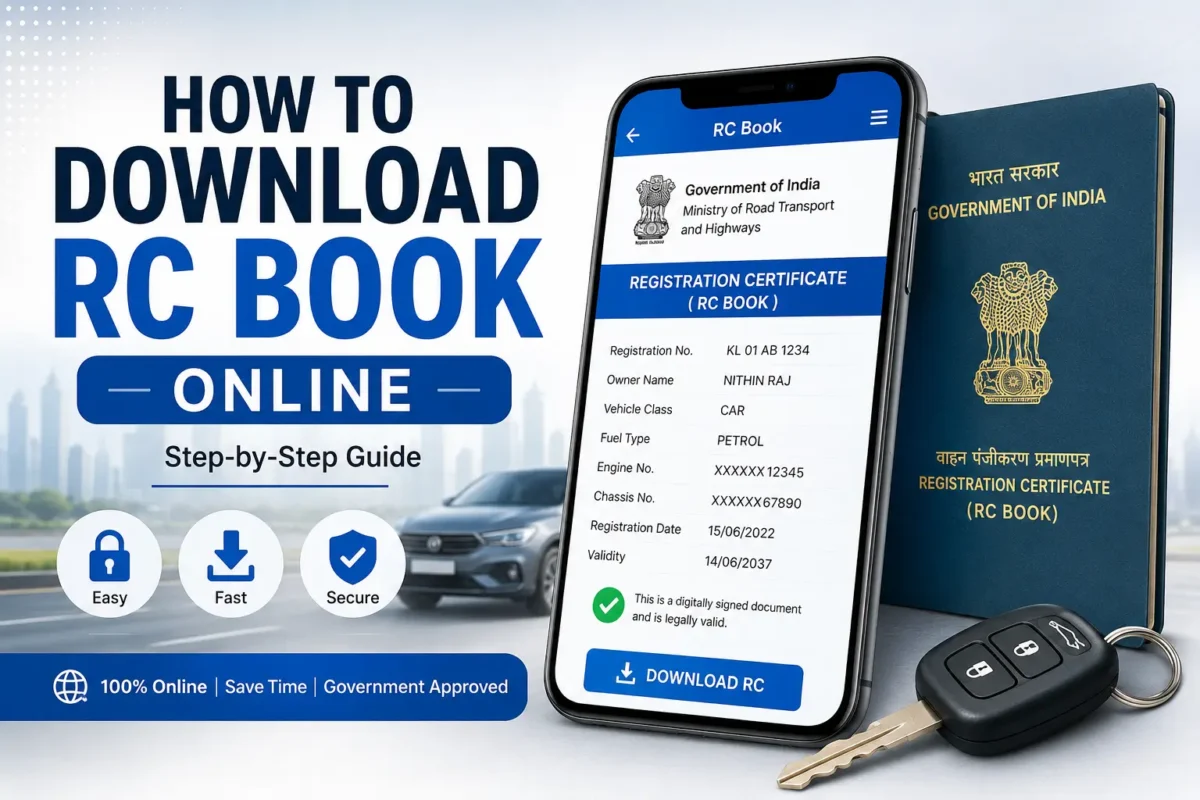
How to Download RC Book Online:- Most people discover they need their RC Book at the worst possible moment — pulled over at a traffic check, mid-way through a vehicle insurance renewal, or trying to sell a bike and suddenly realizing the physical copy is buried somewhere in a drawer at home. The good news is that you don’t need to carry the physical RC anymore, and you certainly don’t need to make a trip to the RTO just to get a copy.
The Government of India recognizes digital vehicle documents, and there are three straightforward ways to access your RC on your phone — through DigiLocker, the mParivahan app, or the Parivahan Sewa portal. This guide walks through all three so you can pick whichever works best for you.
What Is an RC Book and What’s In It?
The Registration Certificate — commonly called the RC Book — is the official document issued by your Regional Transport Office (RTO) that proves your vehicle is legally registered in India. Without it, your vehicle technically has no legal standing on the road.
The RC contains everything that matters about your vehicle:
- Vehicle Registration Number
- Owner’s Name and Address
- Vehicle Make and Model
- Engine Number
- Chassis Number
- Fuel Type
- Date of Registration
- Validity Details
- Hypothecation details (if the vehicle is under a loan)
A digital RC downloaded from government-approved platforms — DigiLocker and mParivahan specifically — carries the same legal validity as the physical document for most day-to-day purposes, including traffic checks.
Method 1: Download RC Book Using DigiLocker
DigiLocker is the most reliable method for most people, especially if your Aadhaar-linked mobile number is active. Once your RC is fetched into DigiLocker, it stays there permanently and can be accessed anytime — even without internet, once cached.
Step 1: Open DigiLocker
Visit the DigiLocker website (digilocker.gov.in) or open the DigiLocker app on your phone. The app is available on both Google Play Store and Apple App Store.
Step 2: Log In
Sign in using your Aadhaar-linked mobile number. If you haven’t created a DigiLocker account yet, registration takes about two minutes — you’ll need your Aadhaar number and mobile OTP to set it up.
Step 3: Go to “Search Documents” or “Get Documents”
Look for the option to add or fetch documents from government departments.
Step 4: Find the Ministry of Road Transport & Highways
Search for “Registration of Vehicles” under the Ministry of Road Transport & Highways (MoRTH). This is the section that holds vehicle-related documents.
Step 5: Enter Your Vehicle Details
You’ll be asked to enter:
- Vehicle Registration Number (the number plate number)
- Chassis Number (in some cases — usually the last few digits)
Step 6: Fetch the Document
Click Get Document. DigiLocker connects to the VAHAN national vehicle database and pulls your RC automatically.
Step 7: Save and Access
Your RC Book is now stored in your DigiLocker account under Issued Documents. You can view it, download the PDF, or show it directly from the app whenever needed. Traffic authorities can verify it on the spot using the QR code on the digital document.
Method 2: Download RC Using the mParivahan App
mParivahan is the Ministry of Road Transport & Highways’ official mobile app and is particularly useful at traffic checks — the digital RC on mParivahan is widely accepted by traffic police across India.
Step 1: Install mParivahan
Download the mParivahan app from the Google Play Store or Apple App Store. It’s a free, official government app.
Step 2: Sign In
Open the app and sign in using your mobile number. OTP verification completes the login.
Step 3: Tap on “RC”
On the app’s main screen, you’ll see options for RC, DL (Driving Licence), and other vehicle services. Tap RC.
Step 4: Enter Your Registration Number
Type in your vehicle’s registration number — the same number on your number plate.
Step 5: Verify and View
Your digital RC appears on the screen with all vehicle details. The app also generates a virtual RC card that you can show to traffic authorities directly.
One practical advantage of mParivahan: you can store multiple vehicles’ RCs in the same app — useful if you have more than one vehicle registered in your name.
Method 3: Access RC Through the Parivahan Sewa Portal
The Parivahan Sewa portal (parivahan.gov.in) is the central government’s vehicle services website. While it’s not primarily a document download platform, it offers RC-related services and is a useful backup option.
Step 1: Open the Portal
Go to parivahan.gov.in in your browser.
Step 2: Select Your State
Choose the state where your vehicle is registered from the dropdown.
Step 3: Enter Your Registration Number
Type in your vehicle registration number.
Step 4: Complete Verification
OTP or other verification may be required depending on the service you’re accessing.
Step 5: View RC Details
Vehicle details and RC information are displayed. Download options may be available depending on the specific service section you’re using.
For most people, DigiLocker or mParivahan will be simpler and more direct. The Parivahan portal is more useful for checking vehicle details, applying for services like address change, or initiating a duplicate RC application.
What You’ll Need Before Starting
Regardless of which method you use, keep these handy:
- Vehicle Registration Number — the number on your number plate
- Registered Mobile Number — the one linked to your Aadhaar (for DigiLocker) or used during vehicle registration
- Chassis Number — last few digits, sometimes required; found on the vehicle or in old insurance documents
- Aadhaar-linked mobile — specifically for DigiLocker authentication
Is a Digital RC Legally Valid?
Yes — and this is important to understand clearly. The Government of India, through the Motor Vehicles Act and subsequent notifications, has recognized digital vehicle documents available through DigiLocker and mParivahan as legally valid equivalents to physical documents.
Traffic police across India are required to accept digital RCs shown on these official platforms. You cannot be penalized for not carrying a physical RC if you can show the digital version on DigiLocker or mParivahan.
That said, there are still some situations — certain RTO procedures, legal proceedings, vehicle sales — where the original physical RC may be specifically required. For everyday use, the digital version is fully sufficient.
DigiLocker vs mParivahan — Which Should You Use?
Both are official government platforms and both are valid. Here’s how they differ in practice:
| Feature | DigiLocker | mParivahan |
|---|---|---|
| Document Storage | Permanent in your account | Virtual RC on the app |
| Offline Access | Yes (once cached) | Limited |
| Multiple Vehicles | Yes | Yes |
| Other Documents | DL, Aadhaar, PAN, more | Primarily vehicle documents |
| Traffic Police Acceptance | High | High |
| Aadhaar Requirement | Yes (for login) | No |
Use DigiLocker if you want a permanent digital document store that holds your RC along with other important documents like Aadhaar, PAN, and driving licence in one place.
Use mParivahan if you want a quick, vehicle-focused app that’s specifically designed for on-road use and traffic checks.
Many people use both — DigiLocker as the permanent backup, mParivahan for quick access at traffic stops.
Common Problems and How to Fix Them
RC Not Found in the Database
This happens most often with older vehicles — registrations that predate the VAHAN digital database. If your RC isn’t showing up, your vehicle record may not yet be digitized.
What to do: Visit your local RTO with your original RC and request that your vehicle details be updated in the VAHAN system. Once entered, the RC will be accessible digitally.
OTP Not Received
Usually a network or number issue.
What to do: Check that your mobile number is active and has signal. Wait two to three minutes and request a fresh OTP. Make sure you’re using the correct number — the one linked to your Aadhaar (for DigiLocker) or registered in the VAHAN system.
Wrong Vehicle Details Showing Up
Occasionally the VAHAN database has outdated or incorrect information — an old address, a previous owner’s name if ownership transfer wasn’t properly completed.
What to do: For minor errors, the Parivahan portal has an option to request corrections. For ownership-related issues, visit your RTO with the relevant documents.
Server Error or Portal Not Loading
Government portals do go down occasionally, especially during high-traffic periods.
What to do: Try again after 30 minutes to an hour. Early morning is usually when government portals run most smoothly. If it’s a recurring problem over multiple days, the Parivahan helpline can help.
DigiLocker Showing “Document Not Available”
This means the RC hasn’t been linked yet in the system.
What to do: Try entering the chassis number as an additional verification step. If it still doesn’t work, the vehicle record may need to be updated at the RTO level first.
What to Do If You’ve Lost Your Physical RC
Losing the original RC is more serious than losing most documents because you’ll need it for vehicle sale, certain RTO procedures, and some legal situations. Here’s what to do:
Step 1: File a police complaint (FIR or Non-Traceable Report) about the lost document. Most RTOs require this.
Step 2: Get an affidavit made on stamp paper declaring the loss of the original RC.
Step 3: Apply for a duplicate RC through the Parivahan portal online or directly at your RTO. You’ll need:
- FIR copy or Non-Traceable Report
- Affidavit
- Address proof
- Passport-size photographs
- Pollution Under Control (PUC) certificate
- Insurance certificate
Step 4: Pay the applicable duplicate RC fee at your RTO.
In the meantime: Use your digital RC on DigiLocker or mParivahan for day-to-day purposes while the duplicate is being processed.
Frequently Asked Questions
Is digital RC accepted by traffic police everywhere in India?
Generally yes. The Motor Vehicles Act recognizes DigiLocker and mParivahan documents as valid. However, acceptance in practice can occasionally vary by state or individual officer. In Kerala specifically, digital documents are widely accepted during routine checks.
Can I show my RC on someone else’s phone?
Technically the RC in DigiLocker is tied to your account. If you log into your DigiLocker account on another phone, you can show the document. mParivahan similarly requires your account login. Showing a screenshot is not considered legally valid.
My vehicle is under a loan — will the RC show the hypothecation?
Yes. If the vehicle is financed, the RC will show the lender’s name under hypothecation details. This is normal and doesn’t affect the document’s validity.
Can I download RC for a vehicle registered in someone else’s name?
No. DigiLocker and mParivahan link documents to the registered owner’s Aadhaar and mobile number. You can only access RCs for vehicles registered in your name.
My registration number format looks different — will it still work?
Enter the number exactly as it appears on your number plate, without spaces. Both old format (KL 10 AB 1234) and new format numbers should work. Try both with and without spaces if one doesn’t work.
Is there any charge for downloading RC digitally?
No. Accessing your existing RC through DigiLocker or mParivahan is completely free. Fees only apply for specific RTO services like duplicate RC issuance or ownership transfer.
What if my vehicle is registered in another state but I’m currently in Kerala?
Your RC is valid nationwide regardless of which state it’s registered in. The digital RC will show the original registration details, which is perfectly fine for use anywhere in India.
Why You Should Set This Up Today
Here’s the practical reality: carrying a physical RC everywhere is one of those things that works fine until it doesn’t. The card gets left at home, misplaced in another wallet, or damaged. At a traffic check without it, you’re looking at a fine.
Setting up DigiLocker and mParivahan takes about 15 minutes total. Once done, your RC — along with your driving licence and other documents — is accessible anytime from your phone. It’s one of those genuinely useful things that takes minimal effort to set up and then just works quietly in the background.
If you have a vehicle registered in your name and you haven’t done this yet, today is a good day to get it done.
Bottom Line
Three methods, all free, all officially recognized. DigiLocker for a permanent digital document store, mParivahan for quick on-road access, and the Parivahan portal for vehicle services and as a backup option.
Pick whichever fits how you use your phone, set it up once, and you’re covered. No more hunting for the RC Book before a long drive, no more anxiety at traffic checkpoints, no more worrying about what happens if the original gets lost.