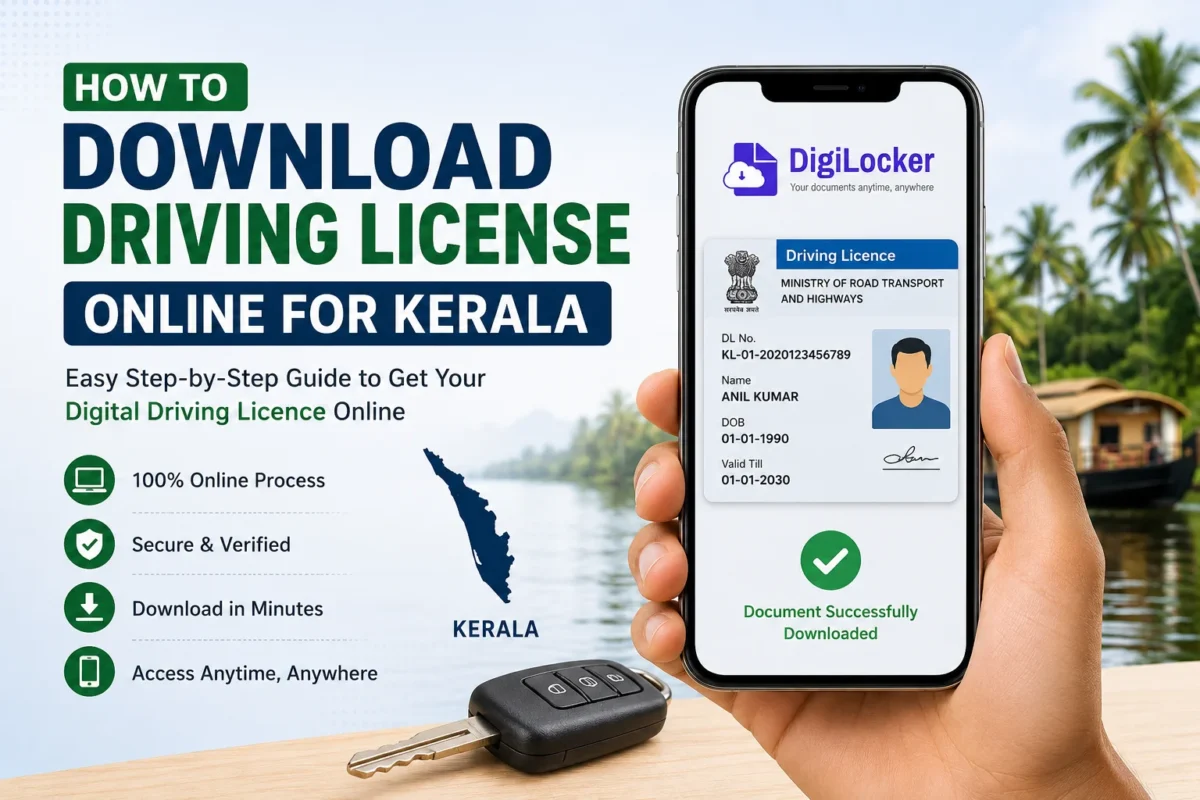
How to Download Your Driving Licence Online in Kerala:- The physical driving licence card has a talent for being somewhere other than where you need it. Left in a different wallet, sitting in the car you didn’t drive today, tucked into a file at home when you’re standing at a traffic check. For a document you’re legally required to carry while driving, it’s surprisingly easy to not have it on you.
The solution has existed for a few years now, but a surprising number of Kerala drivers haven’t set it up: your driving licence is available digitally through DigiLocker and mParivahan, both of which are officially recognized by the Ministry of Road Transport and Highways. Show the digital version on your phone at a traffic check — it’s legally valid, verifiable on the spot, and always in your pocket.
This guide walks through exactly how to set it up, what to do if your licence doesn’t show up, and everything else Kerala licence holders need to know.
Digital Driving Licence — What’s Actually Legal?
Before getting into the how, it’s worth being clear about what’s legally recognized and what isn’t.
Legally valid:
- Driving licence accessed through the Issued Documents section of your DigiLocker account — fetched directly from the Ministry of Road Transport and Highways’ National Register
- Driving licence shown through the mParivahan app’s virtual DL feature
Not legally valid as a substitute:
- A photograph of your physical licence stored in your phone gallery
- A scanned copy uploaded to DigiLocker as a self-uploaded document
- A screenshot of your licence details from any website
The distinction matters. The legal recognition applies specifically to documents fetched from the government database — not to any image of the physical card. The Ministry of Road Transport and Highways has explicitly confirmed this in circulars to state governments and traffic enforcement authorities.
What You’ll Need Before Starting
- Driving Licence Number — the number on your current licence card
- DigiLocker account — with Aadhaar verification completed
- Aadhaar-linked mobile number — for OTP during login and verification
- Active internet connection — for the initial setup; once fetched, documents are accessible in the app
One thing to check before you start: your name as it appears in the Aadhaar database and your name in the driving licence database should broadly match. If there’s a significant mismatch — different spelling, missing surname, maiden vs married name — DigiLocker may not be able to retrieve the document. This is a common issue and there’s a fix, covered later in this guide.
Method 1: DigiLocker — Step by Step
DigiLocker is the Government of India’s official digital document platform. For driving licences, it connects directly to MoRTH’s National Register of Driving Licences and fetches your authenticated record.
Step 1: Open DigiLocker
Go to digilocker.gov.in or open the DigiLocker app (available on both Google Play Store and Apple App Store). The app is more convenient for ongoing use — download it if you haven’t already.
Step 2: Log In or Create an Account
Existing account: Log in with your registered mobile number or Aadhaar details.
New to DigiLocker? Creating an account takes about three minutes:
- Enter your mobile number
- Verify with OTP
- Complete Aadhaar verification — this is what enables access to government-issued documents
- Set a username and PIN
The Aadhaar verification step is what makes DigiLocker documents legally valid — it ties the digital documents to your verified identity.
Step 3: Search for the Driving Licence Service
Once logged in, look for the Search Documents option or the document search bar. Navigate to:
Transport & Infrastructure → Driving Licence → Ministry of Road Transport & Highways
Alternatively, simply type “Driving Licence” in the search bar — DigiLocker’s search is fairly intuitive.
Step 4: Enter Your Licence Number
When prompted, enter your Kerala driving licence number carefully. Double-check it against your physical card before submitting — one digit wrong and the system either can’t find the record or retrieves someone else’s document.
You may be asked for additional verification details depending on the current DigiLocker interface.
Step 5: Give Consent and Fetch
DigiLocker will ask for your consent to retrieve the document from MoRTH’s database. Confirm and submit. If your record is in the National Register and your details match, the document is fetched and appears in your account within seconds.
Step 6: Access Your Digital Driving Licence
Navigate to:
DigiLocker → Issued Documents → Driving Licence
Your digital driving licence is now there — viewable, shareable, and accessible anytime. The document includes a QR code that traffic authorities can scan for instant verification of authenticity.
Method 2: mParivahan App
The mParivahan app is MoRTH’s official vehicle documents app and is widely used by traffic police across India for on-the-spot document verification. Many drivers actually prefer it over DigiLocker for traffic checks because it’s specifically designed for this purpose.
Download: Search “mParivahan” on Google Play Store or Apple App Store. It’s free and official.
Setting up your driving licence on mParivahan:
- Open the app and sign in with your mobile number
- Verify with OTP
- Tap the DL (Driving Licence) option on the main screen
- Enter your driving licence number
- Your virtual DL appears — complete with your details and a scannable QR code
The mParivahan virtual DL can be shown directly to traffic police. The app also stores your RC (Registration Certificate) and other vehicle documents, making it a one-stop digital document wallet for everything road-related.
DigiLocker vs mParivahan — Which Should You Use?
Both are officially recognized. Here’s how they differ in practice:
| Feature | DigiLocker | mParivahan |
|---|---|---|
| Government Recognition | MoRTH recognized | MoRTH recognized |
| Document Storage | All government documents (DL, RC, Aadhaar, PAN, etc.) | Primarily vehicle documents |
| Offline Access | Yes (once cached) | Yes |
| Traffic Check Use | Accepted | Widely accepted, purpose-built |
| Multiple Vehicles | Yes | Yes |
| QR Code Verification | Yes | Yes |
| Aadhaar Required | Yes (for verified docs) | No |
Practical recommendation: Set up both. DigiLocker for a comprehensive digital document wallet that holds everything from your Aadhaar to your degree certificates alongside your driving licence. mParivahan for quick, easy access at traffic checks — it’s the app that’s most familiar to traffic police and optimized for that specific use case.
What If Your Driving Licence Doesn’t Show Up in DigiLocker?
This is a common frustration and usually has a fixable cause. Work through these in order:
Check Your Licence Number
The most common reason for failed retrieval is a wrong licence number. Kerala driving licence numbers follow a specific format — KL followed by district code and serial number. Verify against your physical card character by character.
Name Mismatch Between Aadhaar and Licence Database
If your name is spelled differently in your Aadhaar versus the RTO database — even small variations like “Mohammed” vs “Mohammad,” or a maiden name vs married name — DigiLocker’s matching algorithm may fail.
What to do: Check your name as it appears in the RTO system through the Parivahan portal (parivahan.gov.in → Driving Licence related services → Know your DL details). If there’s a mismatch, you’ll need to get either your Aadhaar or your RTO record corrected so they match.
Licence Record Not in the National Register
Older driving licences — particularly those issued before RTO systems were digitized — may not have been uploaded to the National Register yet. This is more common for licences issued before 2012–2014 in some Kerala districts.
What to do: Visit your issuing RTO with your physical licence and request that your record be updated in the VAHAN/Sarathi national database. Once updated, the DigiLocker retrieval should work.
Date of Birth Mismatch
Less common but possible — if your date of birth in the RTO database doesn’t match your Aadhaar, retrieval fails. Check your details on the Parivahan portal and correct if needed at the RTO.
Temporary Database Issue
Government databases occasionally have downtime or synchronization delays. If everything looks correct but retrieval fails, try again after a few hours or the next day.
Checking Your Kerala Driving Licence Details Online
Beyond the DigiLocker download, you can check your licence status, validity, and details directly through the Parivahan portal:
- Go to parivahan.gov.in
- Navigate to Driving Licence related services
- Select Know your Licence Details
- Enter your DL number and date of birth
- Your licence details, validity, and current status are displayed
This is useful for:
- Verifying your details before attempting DigiLocker retrieval
- Checking licence validity dates
- Confirming endorsements or categories on your licence
- Identifying any discrepancies between your records
Using Your Digital Driving Licence at Traffic Checks
A few practical points for Kerala drivers:
Show the Issued Documents version, not a screenshot. If traffic police want to verify, they’ll either scan the QR code or check the document through their system. A screenshot can’t be verified — the document in DigiLocker’s Issued Documents section can.
The mParivahan virtual DL is well-known to traffic police. If you’re using mParivahan, traffic police in Kerala are generally familiar with this — it’s been in use long enough that most officers know how to verify it.
Keep your phone charged. An obvious point but worth stating — a digital document on a dead phone helps no one. If you drive long distances, keep a charger in the car.
You’re not required to show the physical card if you can show the digital version. MoRTH’s circular is clear on this. If an officer insists on the physical card when you have a valid digital version on DigiLocker or mParivahan, you can respectfully inform them of the ministry’s recognition of digital documents.
Keeping Your Licence Details Current
Your DigiLocker driving licence reflects the data in MoRTH’s National Register. If any of the following change, your digital document will update once the RTO updates the national database:
Address change: If you’ve moved, update your address at the RTO. The updated address will eventually reflect in the digital document.
New vehicle category: Added a commercial vehicle category or a new two-wheeler class? Once the RTO updates your record, the digital licence reflects the addition.
Renewal: After your driving licence is renewed (process covered in our DL renewal guide), the updated validity will show in DigiLocker once the renewed record is in the national database — typically within a few days of processing.
Protecting Your Digital Documents
A few security points worth knowing:
DigiLocker is PIN-protected. Set a strong PIN for your DigiLocker account — it’s the gateway to all your verified documents. Don’t share this PIN.
Don’t share your DigiLocker credentials. Your DigiLocker account contains sensitive government documents — licence, Aadhaar, PAN, potentially your vehicle RC. Treat the credentials with the same care as your banking passwords.
Be wary of third-party “services” offering DigiLocker document downloads. Some websites claim to download your DigiLocker documents for a fee or ask for your DigiLocker login to “retrieve” your licence. Never use these — DigiLocker is a direct government portal and requires no intermediary.
The QR code on your digital document is single-use for verification. Each time it’s scanned for verification, the scan is logged — this is a feature, not a bug. It makes the document more tamper-proof than the physical card.
Frequently Asked Questions
Is the digital driving licence legally accepted everywhere in India?
Yes — MoRTH’s recognition of DigiLocker and mParivahan driving licences applies nationally. A traffic officer in any state is required to accept it under the ministry’s guidelines.
What if a traffic officer refuses to accept my digital licence?
Politely cite MoRTH’s circular on digital document acceptance. If the issue persists, note the officer’s details and report to the Superintendent of Police or the state transport authority. The digital licence is legally recognized and refusal to accept it isn’t consistent with current law.
Can I use DigiLocker without Aadhaar?
You can create a basic DigiLocker account without Aadhaar, but accessing verified government-issued documents — including the driving licence fetched from MoRTH — requires an Aadhaar-verified account.
My licence shows as expired in DigiLocker but I’ve renewed it — what’s happening?
The DigiLocker document reflects the national database. After renewal, there’s typically a lag of a few days to a week before the updated record appears in DigiLocker. If it’s been more than two weeks since renewal and still shows expired, check the Parivahan portal — if the renewal shows there but not in DigiLocker, it may be a database synchronization issue that clears on its own.
Can I access my licence offline after fetching it in DigiLocker?
Yes — once fetched and opened, the document is cached in the DigiLocker app and accessible without internet. For mParivahan, the virtual DL is also accessible offline after initial setup.
Does DigiLocker store my driving licence permanently?
Once fetched to your Issued Documents, the driving licence remains in your DigiLocker account. It reflects updated data from MoRTH’s database, so if your licence details change, the document updates accordingly.
Can someone misuse my digital licence if they see it on my screen?
The QR code on the document allows verification but doesn’t expose sensitive data to someone simply viewing the screen. The licence number and personal details visible on screen are the same as on your physical card — no additional risk from digital display.
Is there any charge for accessing my driving licence through DigiLocker?
No. DigiLocker is a free government service. Accessing your verified driving licence through it costs nothing. If any website or person charges you for this, they’re running a scam.
Quick Setup Checklist
Use this before you start:
- DigiLocker app downloaded on phone
- DigiLocker account created with Aadhaar verification complete
- Driving licence number ready (check physical card)
- Aadhaar-linked mobile number active and accessible
- mParivahan app downloaded (optional but recommended)
- Name in Aadhaar matches RTO records (check Parivahan portal if unsure)
Once checked off, the actual retrieval takes under five minutes.
Bottom Line
Setting up your driving licence on DigiLocker and mParivahan is a one-time thirty-minute investment that solves a recurring problem permanently. Your licence is always in your pocket, always accessible, legally valid at traffic checks, and impossible to lose or forget at home.
For Kerala drivers specifically — with the state’s active traffic enforcement on national highways and urban roads — having your digital licence set up properly is practical insurance against an avoidable fine.
Do it before your next drive. The setup takes less time than finding a parking spot.
Official platforms: digilocker.gov.in | parivahan.gov.in | mParivahan app on Play Store